Web Chat
Web Chat adds a live chat widget to your website. Assign AI agents to handle conversations, configure action buttons, suggest questions to visitors, and let prospects book meetings — all without leaving your site.
Chat Agents
Chat agents are AI-powered assistants that handle conversations on your website. You can assign different agents to different pages.
| Setting | What It Controls |
|---|---|
| Agent name | Which AI agent handles conversations on matched pages |
| URL filter | URL paths where this agent is active (e.g., /pricing, /product) |
| Active | Enable or disable the agent |
| Default | Used when no URL-specific agent matches |
How Agent Routing Works
- A visitor opens the chat widget on a page
- graph8 checks the page URL against all configured agents’ URL filters
- The matching agent handles the conversation
- If no URL filter matches, the default agent responds
You can configure multiple agents — for example, a product-focused agent on /product pages and a support agent on /help pages.
Chat Buttons
Add action buttons to the chat widget for quick visitor actions:
| Action Type | What It Does |
|---|---|
| Link | Opens a URL (e.g., documentation, pricing page) |
| Question | Sends a preset question to the AI agent |
| Calendar | Opens a booking page for scheduling a meeting |
Each button has:
- Label — display text
- Action and value — what happens when clicked (URL, question text, or calendar slug)
- Icon — optional icon
- Category — group related buttons together
- Paths — URL paths where the button appears (show different buttons on different pages)
Preset Questions
Suggest conversation starters to visitors so they know what to ask:
- Set questions per category
- Target specific pages with URL path filters (or show on all pages)
- Toggle individual questions on or off
Preset questions appear when the visitor first opens the chat, reducing friction and guiding the conversation toward topics your AI agent handles well.
Widget Design
Customize the widget’s look and feel to match your brand:
Colors & Layout
| Setting | Default |
|---|---|
| Primary color | #7E2DF3 |
| Secondary color | #f8fafc |
| Font family | Inter |
| Border radius | 0.5rem |
| Widget width | 350px |
| Dark mode | Off |
Message Styling
| Setting | What It Controls |
|---|---|
| User message background | Color behind visitor messages |
| User message text | Text color for visitor messages |
| Assistant message background | Color behind AI responses |
| Assistant message text | Text color for AI responses |
Header & Button
| Setting | What It Controls |
|---|---|
| Assistant name | Name shown in the chat header |
| Show header | Toggle the header bar |
| Header text color | Color of the header text |
| Floating button icon | Icon style for the chat trigger button |
| Floating button color | Color of the trigger button |
Calendar Integration
Visitors can book meetings directly from the chat widget using the calendar action button. Prospects can pick a time without leaving the conversation.
Attachments, Voice Notes & Emoji
The chat composer supports rich media so visitors can share context that text alone can’t convey.
File Attachments
Visitors can attach files directly in the chat composer:
- Images — JPG, PNG, GIF, WebP
- Documents — PDF and common document formats
- Size limits — enforced server-side to prevent abuse
- SSRF protection — uploads are validated and isolated; remote URLs are not fetched on the server
Once uploaded, the attachment is rendered inline in the conversation and persists across history reloads — if a visitor returns later, their previous attachments still display correctly.
Voice Notes
Visitors (and your support team) can send voice notes from the composer:
- Click the microphone icon to start recording
- Click again to stop and send
- Voice notes appear in the conversation with a built-in player (play, pause, scrub)
- Codec-flexible: graph8 accepts codec-parameterized voice MIME types from any modern browser
- Voice notes are transcribed and fed to the AI agent so it can respond in context
Emoji Picker
The composer includes an emoji picker for quick reactions and lighter conversational tone — useful for support agents handling friendly support flows.
Support Avatars
When a human support agent joins a conversation, their avatar appears in the chat header so visitors know they’re talking to a real person. If no custom avatar is set, graph8 falls back to the agent’s initials. This applies in both the public widget and the internal-support widget view.
Hiding the Chat Widget
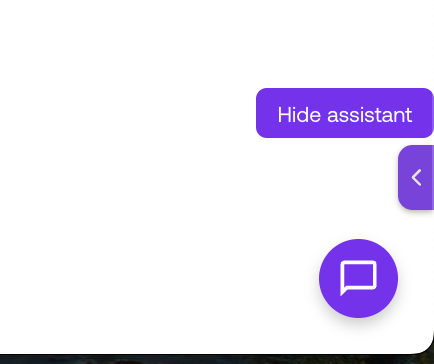
Visitors can collapse the chat whenever they want. Click the arrow tab on the edge of the open chat panel to hide it. The floating chat button stays on the page, so visitors can reopen the conversation any time.
Next Steps
- Appointments → — Manage booked meetings and CRM sync
- Inbox → — View chat conversations alongside email and LinkedIn
- Connections → — Connect your CRM for contact sync