Prospecting
graph8 gives you access to a database of over 200 million B2B contacts. Search by job title, industry, company size, location, and more to build targeted prospect lists for outreach.
Searching the Database
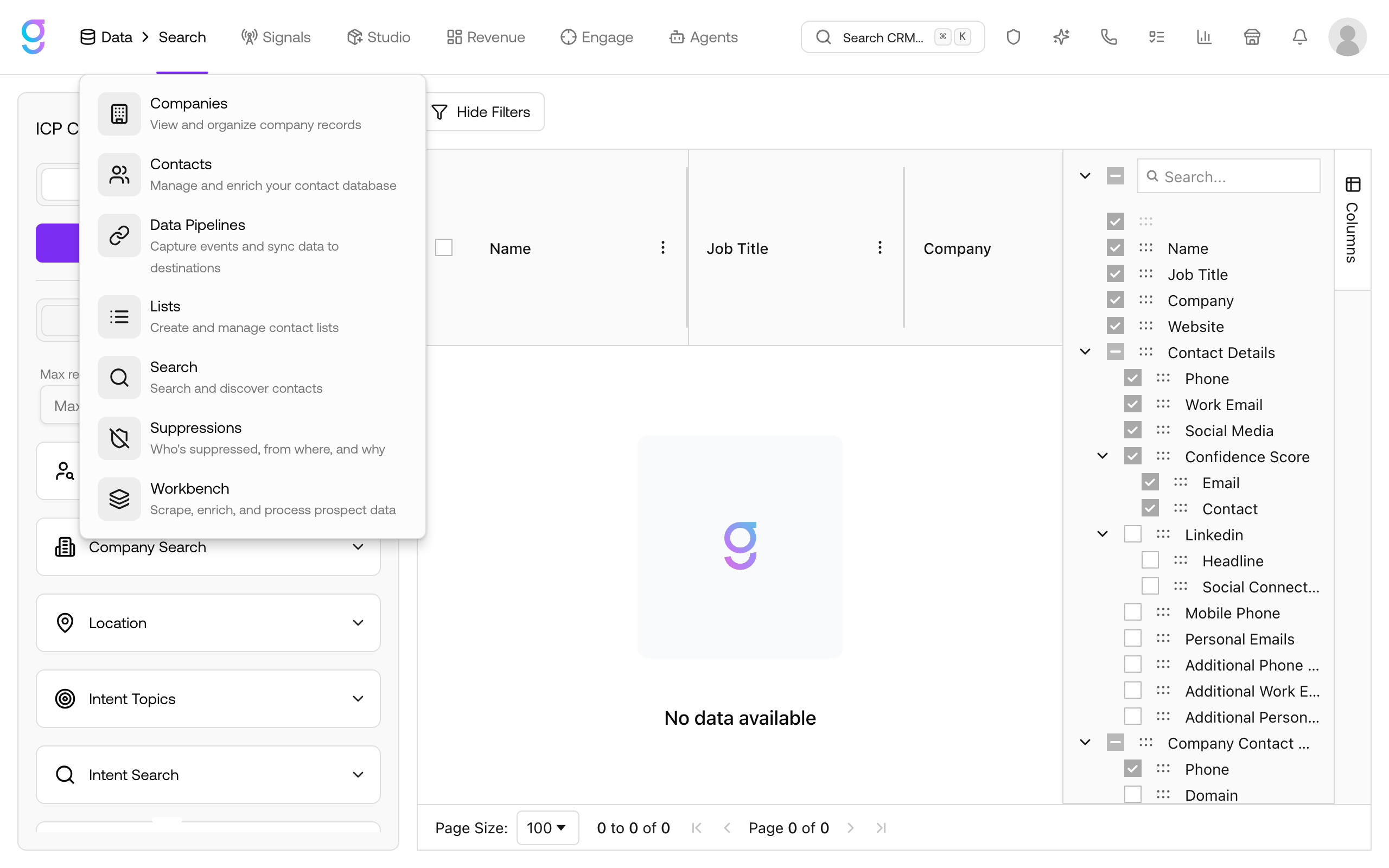
- Go to Data → Search
- Choose the People or Companies tab
- Apply filters to narrow your results, then click Run Search
- Review the matching contacts
- Click Save List to save all results, or select rows and click Save Selected to save just those contacts
Available Filters
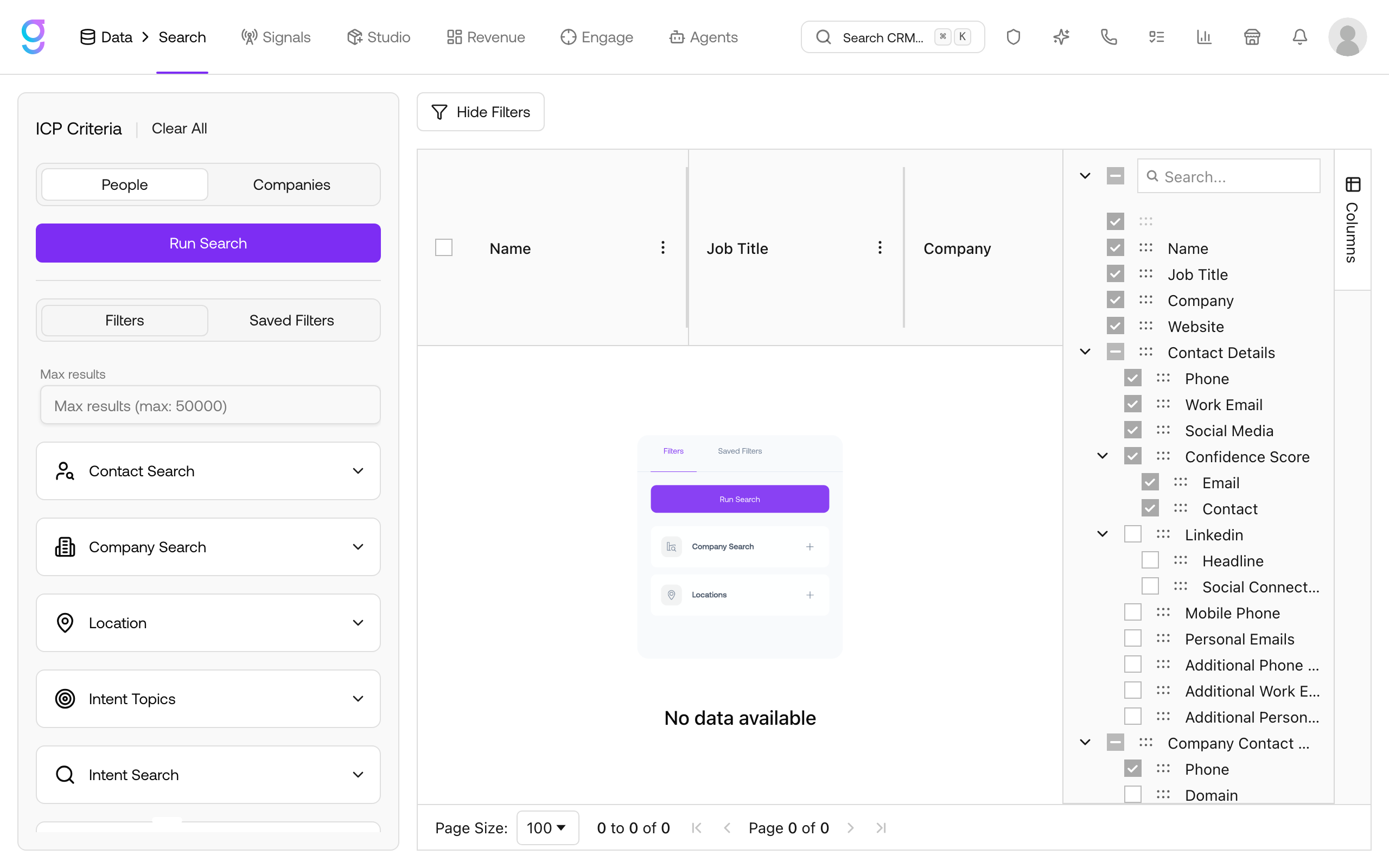
Filters are grouped into sections in the panel on the left:
| Section | Filters | Examples |
|---|---|---|
| Contact Search | Persona (Seniority Level, Job Title, Job Department), Social Profiles, Education, Background, Scoring and Confidence, Personal Information | C-Suite, VP Marketing, Engineering |
| Company Search | Company, Industry, Number of Employees, Company Revenue, Year Founded, Company Social Media, Stock Ticker, Stock Exchange | SaaS, 51-200 employees, $10M+ revenue |
| Location | Contact or company geography | Country, state, city, or metro area |
| Intent Topics | Companies showing buying intent on selected topics | Researching topics relevant to your product |
| Intent Search | Free-text intent keyword search | Product or category keywords |
| Lists | Include or exclude contacts from your existing lists | Exclude current customers |
You can also set Max results above the filters to cap how many records the search returns (up to 50,000).
Combining Filters
Stack multiple filters to build precise targeting. For example:
- VP or Director of Marketing at SaaS companies with 51-200 employees in the United States
- CTO or Head of Engineering at companies with $10M+ revenue founded after 2015
- SDR Managers at companies showing buying intent on topics related to your product, excluding contacts already on your customer lists
Adjust filters and click Run Search again to update the results.
Active Filters
Collapsed filter sections show a badge with the number of active filters applied.
This helps you quickly see how many filters are active, even when sections are closed.
Saving to a List
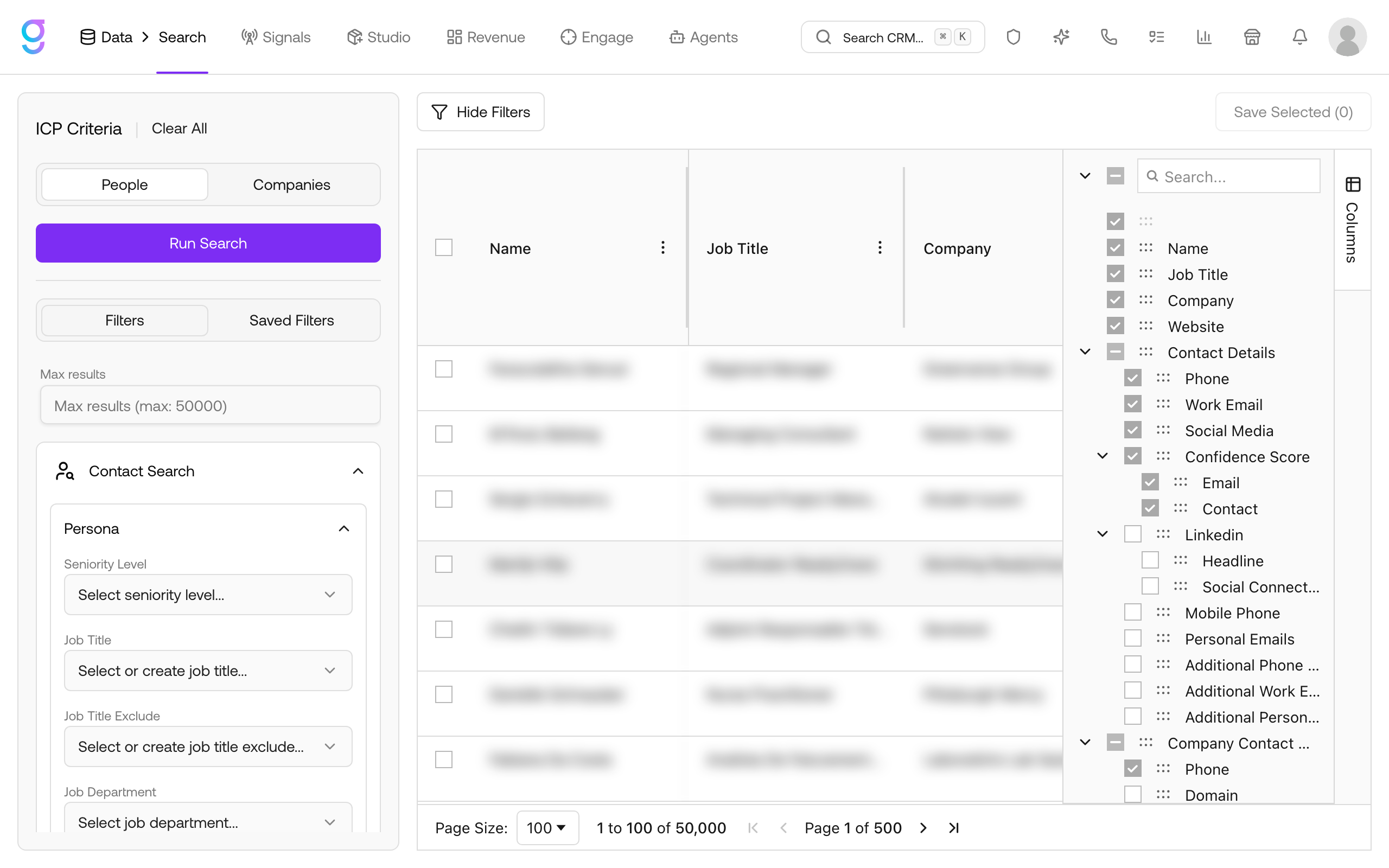
Once you have a set of matching prospects:
- Click Save List to save the full result set, or check individual rows and click Save Selected to save only those contacts
- Give the list a descriptive title (e.g., “Q1 SaaS VP Marketing - West Coast”)
- Save the list; it appears under Data → Lists
Prospects saved to a list are now in your graph8 workspace and can be enrolled in sequences, enriched, or exported.
Saved Filters
Save your most-used filter combinations from the filter panel so you can re-run the same search later. As the database updates, re-running a saved search finds new prospects matching your ICP.
Per-Company Caps
When a search returns multiple matching contacts at the same company, you can cap how many are saved per company:
- When saving a contact list, check Limit number of employees per company in the save dialog and set the cap (e.g., 3 contacts max per company)
- graph8 picks the highest-seniority matches first
- Useful for account-based targeting where you don’t want to over-saturate one company
Enrichment
graph8 enriches prospect data automatically when you save contacts to a list. Enrichment fills in missing fields like:
- Email addresses: verified work emails
- Phone numbers: direct dials and mobile
- LinkedIn profiles: profile URLs
- Company data: size, revenue, industry, tech stack
You can also run enrichment manually on any list: open the list from Data → Lists and click the + column header to add an enrichment column. For advanced enrichment (waterfall providers, AI research, and formula columns), see Enrichment & Formulas.
Next Steps
- Managing Lists →: Organize, filter, and work with your saved lists
- Enrichment & Formulas →: Waterfall providers, AI research, and formula columns
- Import & Export →: Upload your own contacts or export lists