Mailboxes
Connect email accounts to send and receive messages through graph8.
Opening Mailbox Settings
Open Settings from your profile menu (top-right avatar), then go to Channels → Mailboxes. You can also open app.graph8.com/studio/settings?tab=mailboxes directly.
Mailbox List
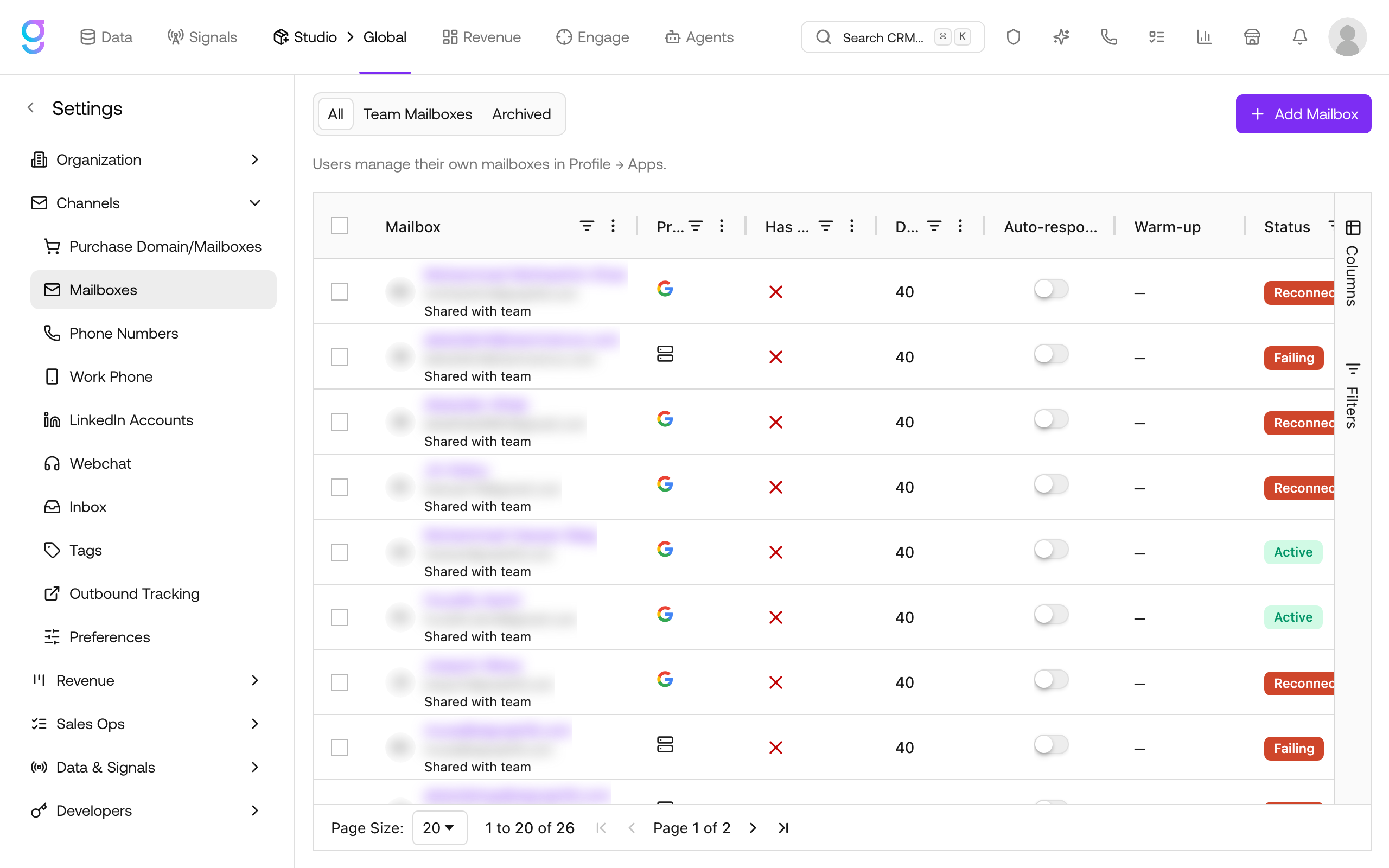
The mailbox list displays all connected mailboxes in a single table view. Switch between tabs to filter:
- All: every mailbox you can access
- Team Mailboxes: all mailboxes across the organization
- Archived: deactivated mailboxes
Each row shows the mailbox email, provider, signature status, daily send limit, auto-respond setting, warm-up progress, and current Status. Use the Columns sidebar to customize which columns are visible. Click any mailbox to view or edit its details.
Users manage their own personal mailboxes in Profile → Apps.
Adding vs. Purchasing Mailboxes
There are two ways to get a mailbox into graph8:
- Add a mailbox: connect an email account you already own (Gmail or any SMTP/IMAP provider) using the steps below.
- Purchase mailboxes: buy brand-new mailboxes from graph8. Purchase a domain first, then create mailboxes on it. Purchased mailboxes come with automatic DNS configuration and warmup enrollment. See Purchase Domain & Mailboxes for details.
Connecting Mailboxes
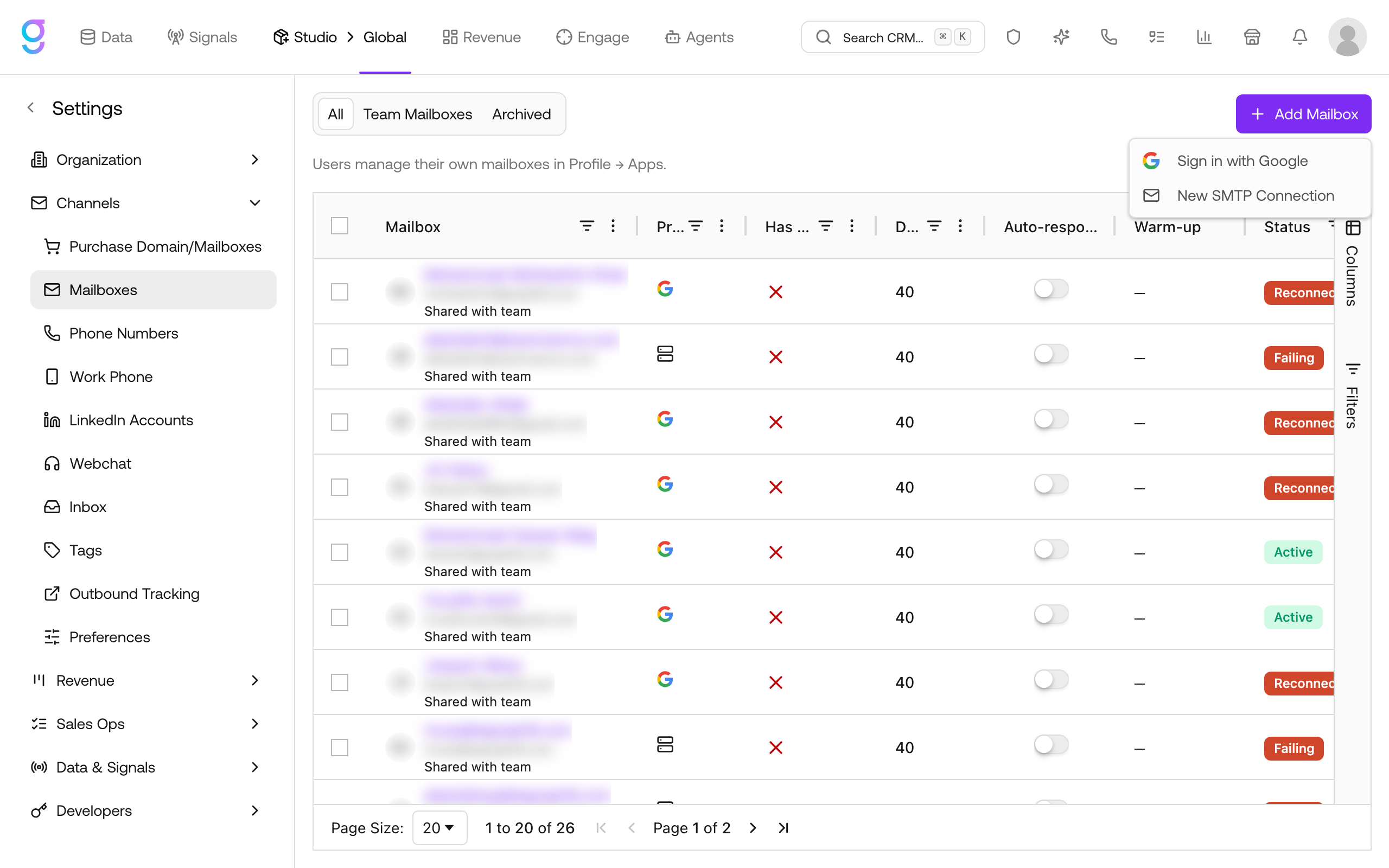
Gmail (OAuth)
Connect a Gmail or Google Workspace account with one-click OAuth:
- Open Settings from your profile menu, then go to Channels → Mailboxes
- Click Add Mailbox
- Select Sign in with Google
- Sign in with your Google account
- Grant the required permissions
- The mailbox appears in your list
SMTP/IMAP
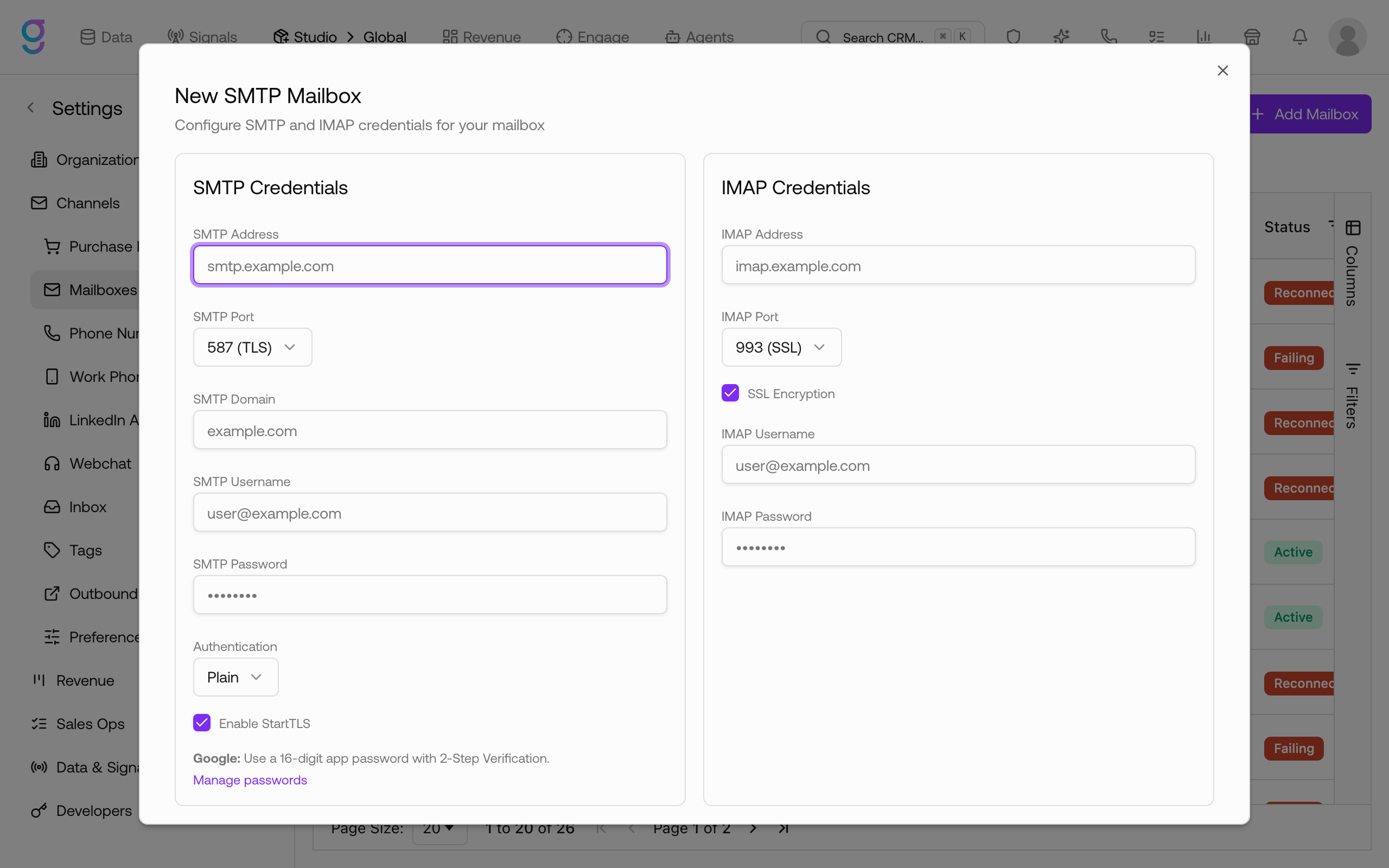
Connect any email provider that supports SMTP and IMAP:
- Click Add Mailbox
- Select New SMTP Connection
- Enter your email address
- Configure SMTP settings (host, port, username, password)
- Configure IMAP settings (host, port, username, password)
- Test the connection
- Save
Contact your email provider for the correct SMTP/IMAP server details.
Mailbox Settings
Each connected mailbox has configurable settings:
Sending Limits
- Daily limit: maximum emails sent per day from this mailbox
- Hourly limit: maximum emails sent per hour
- Limits protect your sender reputation by preventing over-sending
For outbound sequences, each mailbox sends up to 15 emails per day once fully warmed up. New mailboxes ramp up gradually over their first 5 weeks. See Email Warmup → for the full ramp schedule.
Signature
- Set a default email signature for the mailbox
- Signatures are appended to outbound emails automatically
- HTML formatting is supported
Reply-To Address
- Optionally set a different reply-to address
- Replies go to the specified address instead of the sending mailbox
Warmup
Warmup is available for mailboxes created through Settings → Channels → Purchase Domain/Mailboxes. See Purchase Domain & Mailboxes for warmup setup, settings, and validation rules.
Health Monitoring
Track the health of each mailbox from the mailboxes list.
Metrics
- Bounce rate: percentage of emails that bounce back
- Reputation: estimated sender reputation score
- Warmup progress: current warmup status and volume
- Last sync: when the mailbox last synced with the email server
Alerts
graph8 alerts you when:
- Bounce rate exceeds safe thresholds
- Reputation score drops significantly
- Sync fails or connection is lost
- Warmup detects deliverability issues
Shared Mailboxes
Share a mailbox across team members for collaborative sending.
Workspace Assignment
Assign mailboxes to workspaces so team members in that workspace can use them:
- Click the mailbox
- Go to Sharing
- Select the workspace(s) to share with
- Save
Access Control
- Owner: the person who connected the mailbox; full control
- Shared users: can send from the mailbox but cannot modify settings
Bulk Updates
You can update multiple mailboxes at once to save time when managing large setups.
Select multiple mailboxes, then click Bulk Update to apply changes.
You can update:
- Profile pictures
- Email signatures
Changes apply to all selected mailboxes simultaneously.
Frequently Asked Questions
Can I buy mailboxes from graph8 instead of connecting my own?
Yes. Purchase a domain first, then create mailboxes on it. See Purchase Domain & Mailboxes for the full flow.
How many mailboxes can I connect?
Depends on your plan. Check Settings → Billing for your mailbox limit.
Why is my mailbox showing a sync error?
Common causes: password changed, OAuth token expired, email provider blocking access. Reconnect the mailbox to resolve.
Should I warmup every mailbox?
Yes, warmup is recommended for all mailboxes used in outbound sequences. It’s less critical for mailboxes used only for one-to-one replies.
Can I use one mailbox in multiple sequences?
Yes, but respect the daily sending limit. graph8 automatically manages send volume across sequences using the same mailbox.
How many emails can each mailbox send per day in sequences?
Up to 15 per day once the mailbox is fully warmed up (about 5 weeks after it was created in graph8). Newer mailboxes send less while they build reputation: nothing in the first 2 weeks, then 5, 10, and 15 per day in the following weeks. See Email Warmup →.
How many mailboxes can I add to a sequence?
There is no limit. Sends rotate across all mailboxes assigned to the sequence, so adding more mailboxes is how you increase total daily volume. For example, 4 fully warmed mailboxes can send up to 60 emails per day combined.