Ads
Esta página aún no está disponible en tu idioma.
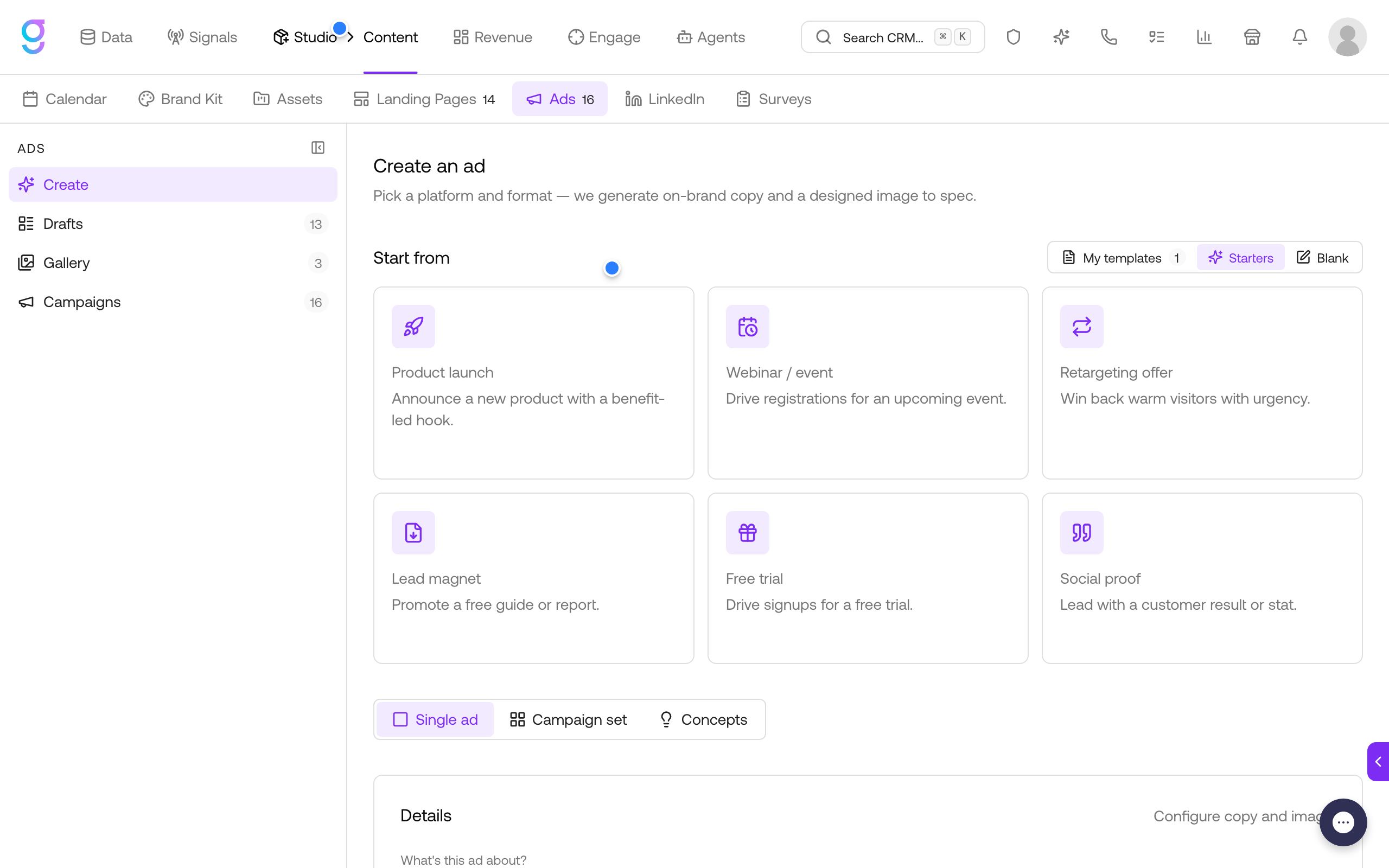
The Ads workspace is graph8’s ad creative studio and campaign launcher in one place. Design on-brand ad copy and images with AI, refine them in a visual editor, then launch paid campaigns to Meta, LinkedIn, Google Ads, and X using your own contact data as the audience.
Open it from Studio → Content → Ads.
The workspace has four sections in the left sidebar:
| Section | What it does |
|---|---|
| Create | Generate new ad creatives (copy + designed image) for a platform and format |
| Drafts | Work-in-progress creatives: edit, review, regenerate, and finalize |
| Gallery | Finished creatives, ready to use in campaigns or export |
| Campaigns | Connect ad accounts, build audiences, and launch paid campaigns |
Supported Platforms
| Platform | Formats | Headline limit | Body text limit |
|---|---|---|---|
| Meta (Facebook/Instagram) | Single image, square, portrait, story, carousel card, and more | 40 characters | 125 characters |
| Single image, square, vertical, carousel card | 70 characters | 600 characters (the feed shows about 150 before “see more”) | |
| Google Ads | Landscape (Responsive), Square (Responsive), Portrait (Demand Gen) | 30 characters | 90 characters |
| X (Twitter) | Single image, square, website card, vertical | 70 characters | 280 characters |
graph8 enforces each platform’s character limits and call-to-action options automatically, so generated ads always fit the spec.
Creating an Ad
- Go to Studio → Content → Ads → Create
- Pick a starting point in the Start from shelf:
- Starters: pre-built briefs like Product launch, Webinar / event, Retargeting offer, Lead magnet, Free trial, and Social proof
- My templates: creatives you saved as templates earlier
- Blank: start from an empty form
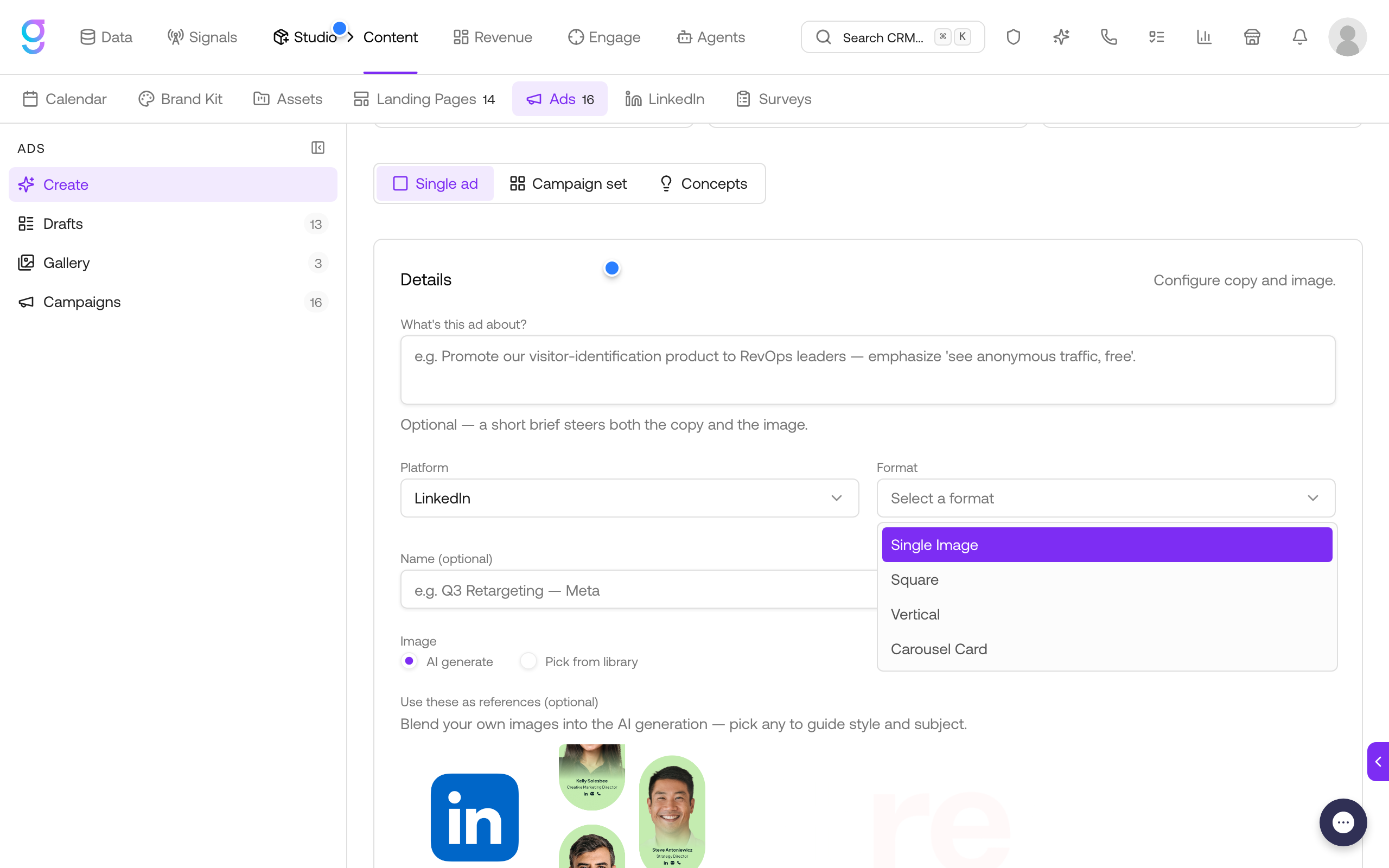
- In the Details form:
- What’s this ad about?: an optional short brief that steers both the copy and the image
- Platform: Meta, LinkedIn, Google, or X
- Format: platform-specific formats appear after you pick a platform
- Name (optional): a custom title for the creative
- Choose the Image source:
- AI generate (default): graph8 designs an image to the format’s exact dimensions. Optionally pick reference images from your library to guide style and subject
- Pick from library: use an existing image from your asset library
- Click Generate with AI
The ad lands in Drafts within a moment and generation continues in the background. Generation consumes credits.
Campaign Sets
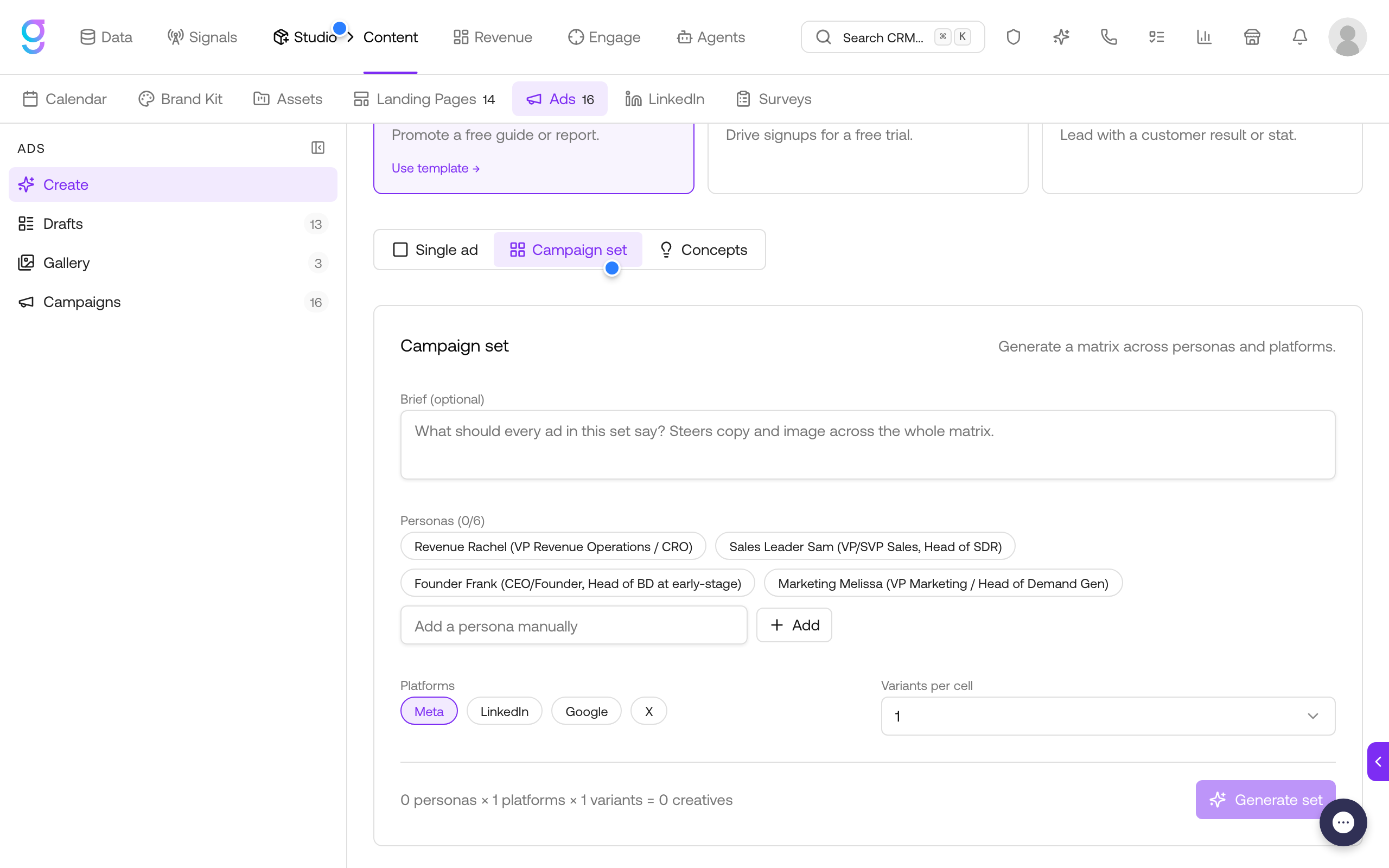
Switch the mode bar from Single ad to Campaign set to generate a matrix of ads across personas and platforms in one batch.
- Write an optional Brief that steers copy and image across the whole set
- Select Personas: pick from your Studio personas or add one manually
- Select Platforms: any combination of Meta, LinkedIn, Google, and X
- Set Variants per cell to generate multiple options per persona and platform pair
- Click Generate set
The counter at the bottom shows the math: personas × platforms × variants = creatives. A batch is capped at 24 creatives.
Concepts
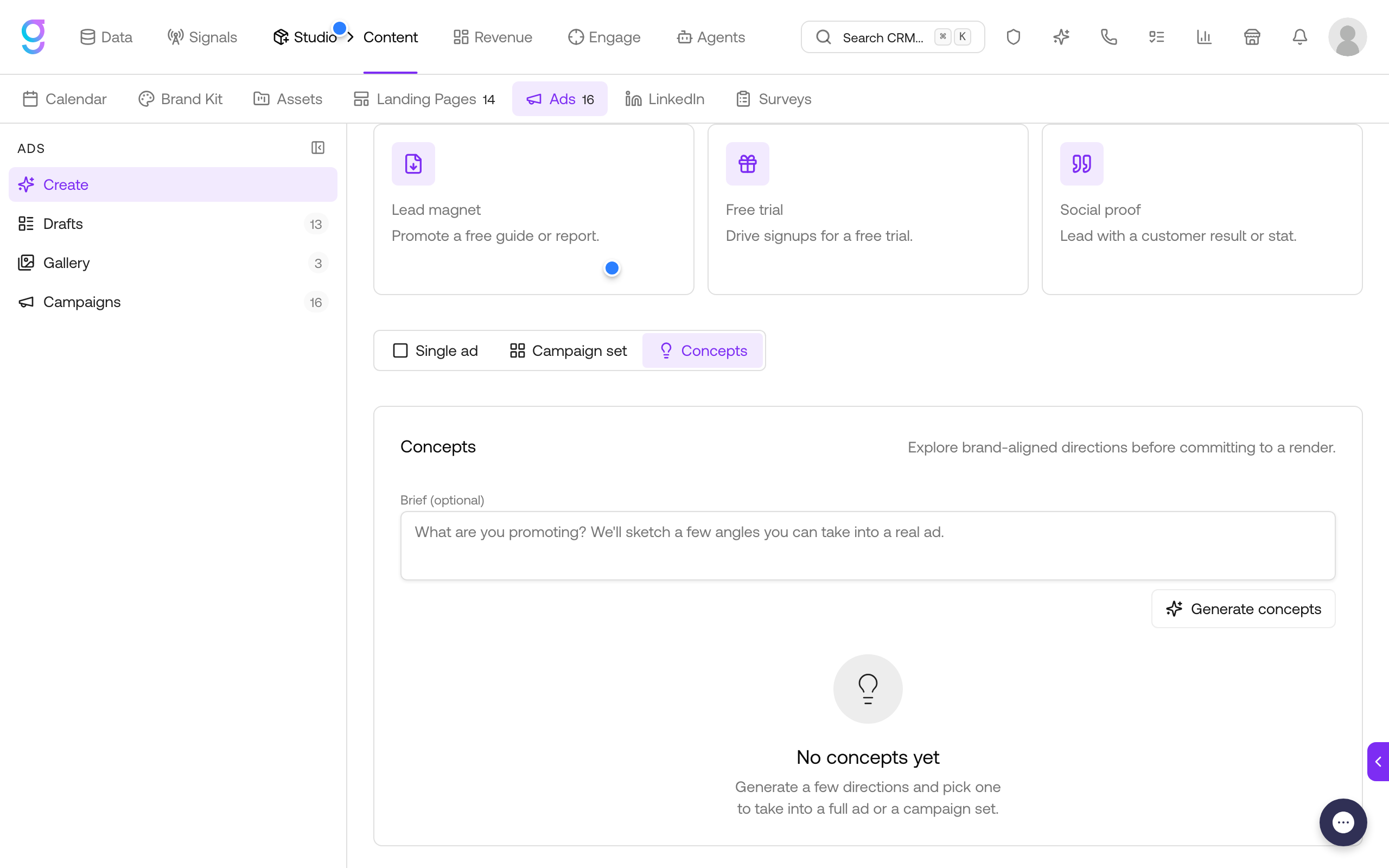
The Concepts mode explores brand-aligned creative directions before you commit to a full render. Describe what you are promoting, click Generate concepts, and pick from a board of directions (each with a name, hook, tone, and layout). The picked concept seeds a single ad or a campaign set.
Working with Drafts
The Drafts tab lists every creative that is not yet finalized, with platform counts across the top and status per row:
| Status | Meaning |
|---|---|
| Generating | Copy and image are being created in the background |
| Ready | Generation finished; the creative can be edited and finalized |
| Failed | Generation hit an error; use the retry action to run it again |
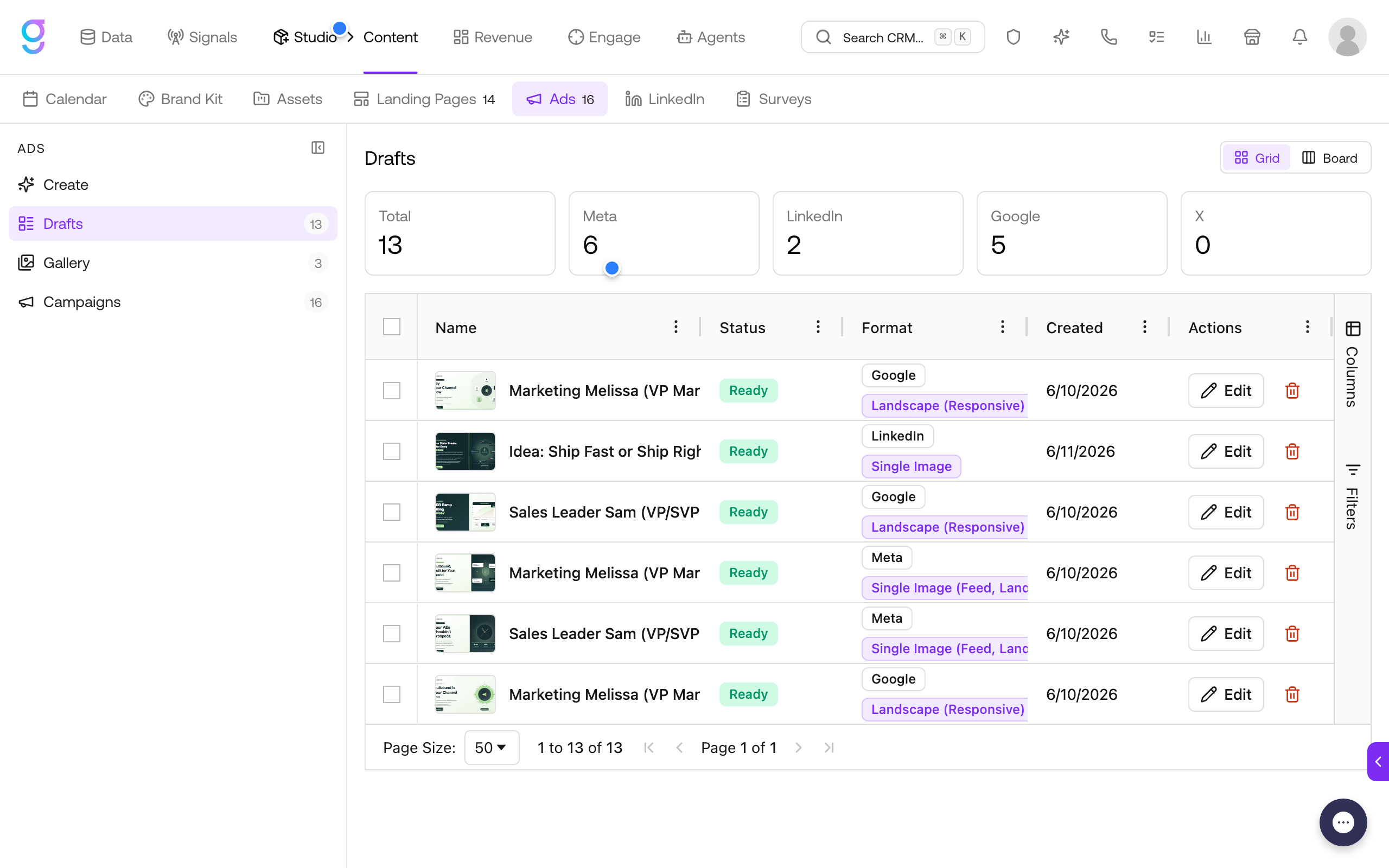
Click Edit on any draft to open the editor.
The Ad Editor
The editor shows your creative on a canvas with three views (Canvas, In-feed, and Raw) and an AI panel on the right.
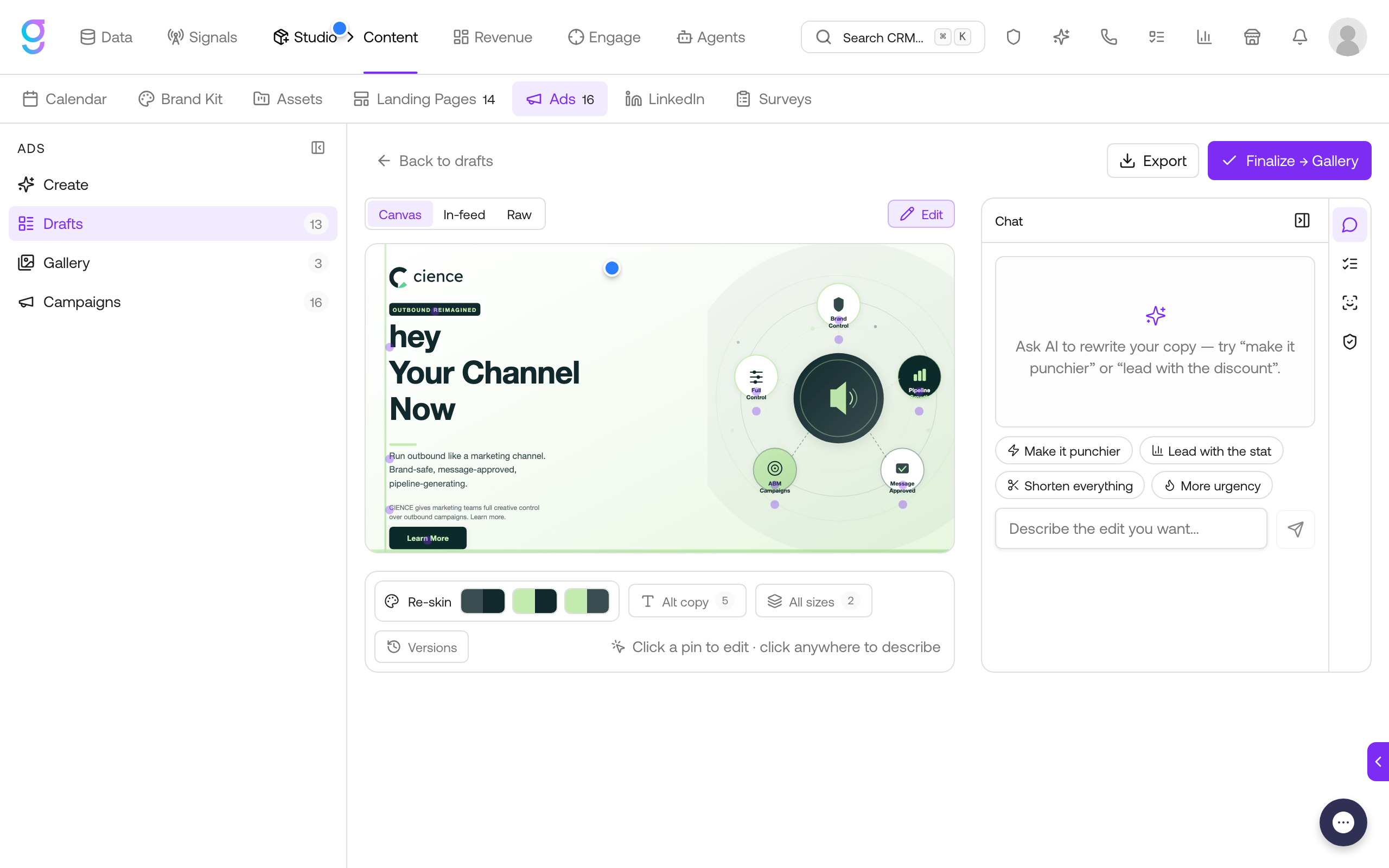
What you can do here:
- Chat editing: describe any change in plain language (“make it punchier”, “lead with the discount”) and the AI rewrites the copy. Quick chips cover common edits: Make it punchier, Lead with the stat, Shorten everything, More urgency
- Click a pin to edit: text elements in the image carry pins; click one to edit that exact text in place. Click anywhere else on the image and describe the change you want
- Re-skin: swap the creative to another brand color combination in one click
- Alt copy: browse alternative copy variants generated alongside the original
- All sizes: fan the finished creative out to the platform’s other formats while keeping the approved copy
- Versions: every edit snapshots a revision; restore any previous version
- Persona lens: preview how a persona would react to the ad
- Review: run an AI quality check (character limits, call-to-action rules, brand casing, placeholder text) with one-click fixes
- Export: download the creative as SVG (editable in Figma or Canva) or PNG, or copy it to the clipboard
When the creative is ready, click Finalize → Gallery.
Gallery and Templates
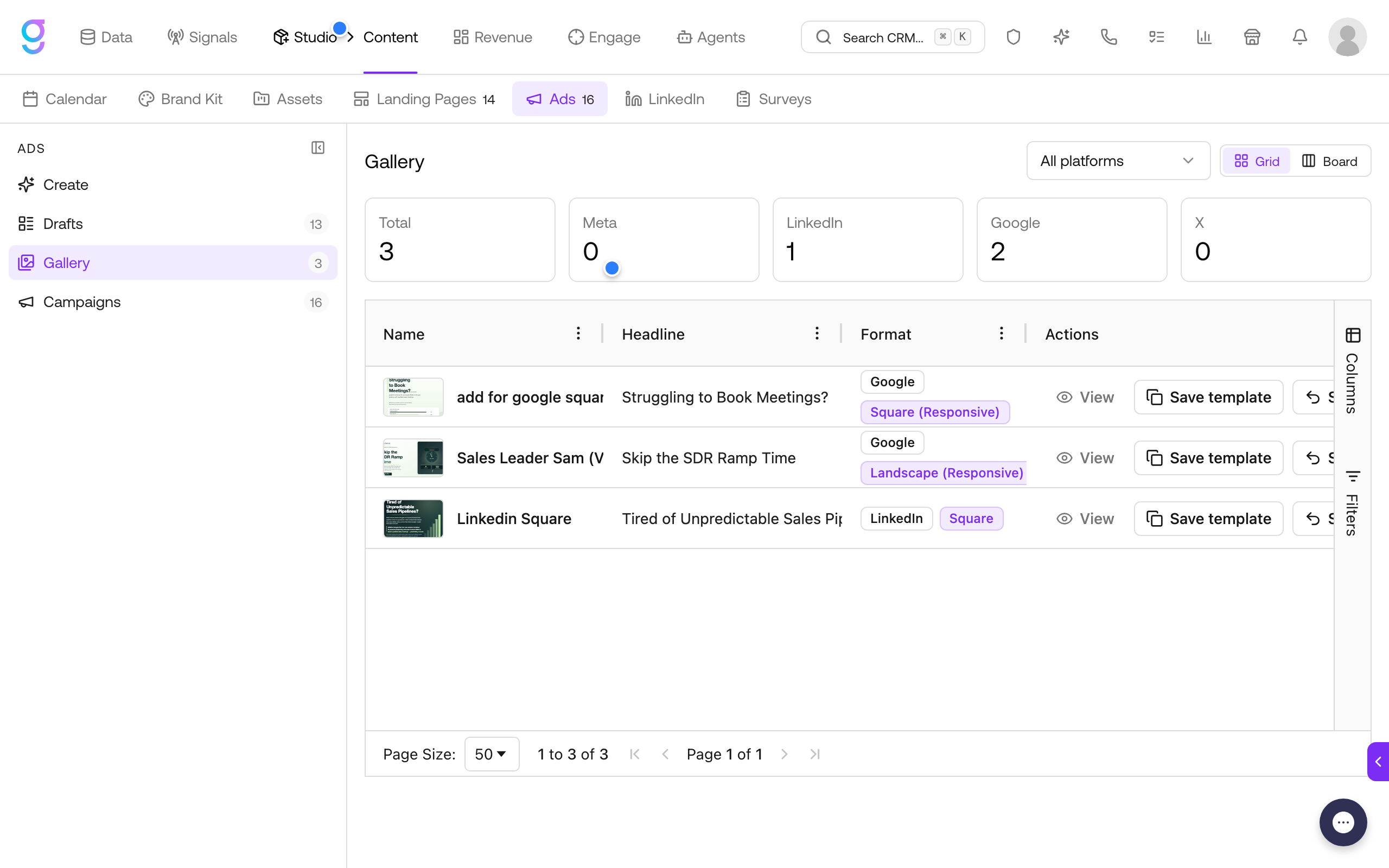
The Gallery tab holds finished creatives. From here you can:
- View the creative
- Save template: keep the creative as a reusable starting point; it appears under My templates on the Create tab
- Use it in a paid campaign: in the campaign wizard’s Creative step, toggle Use an existing creative to auto-fill the headline, copy, call to action, and image from a gallery creative
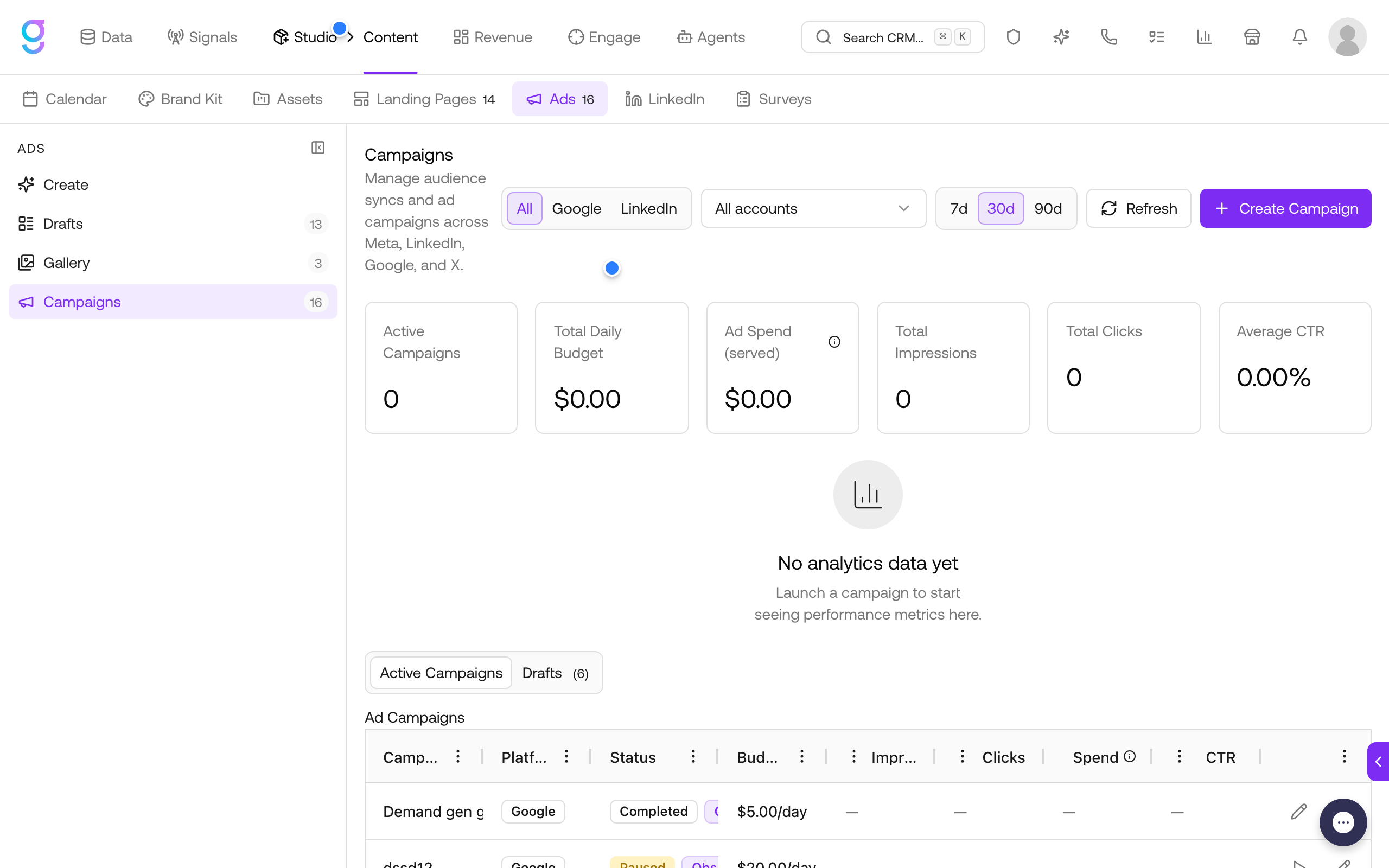
Launching Paid Campaigns
The Campaigns tab is the launcher: connect your ad accounts, build an audience from your contact data, attach a creative, set a budget, and publish. See the step-by-step platform guides:
Permissions
Ads access is controlled by four permissions under Roles (open the profile icon menu in the top right → Settings → Roles, then find the Ads row):
| Permission | Allows |
|---|---|
| View | See creatives, campaigns, and metrics |
| Create | Generate new creatives and save campaign drafts |
| Edit | Edit drafts, and regenerate copy and images |
| Launch | Publish campaigns, pause or resume them, delete them, and move creatives to the gallery |
Launch is the money-spending permission: publishing pushes ads live on the platform and starts billing against your connected ad account. By default, admins, sales managers, and campaign managers can launch; other roles get view-only access.