Pipedrive Integration
Esta página aún no está disponible en tu idioma.
The Pipedrive integration keeps graph8 and Pipedrive in sync: pull persons, organizations, deals, and leads into graph8, push graph8 lists into Pipedrive, and sync activities in both directions.
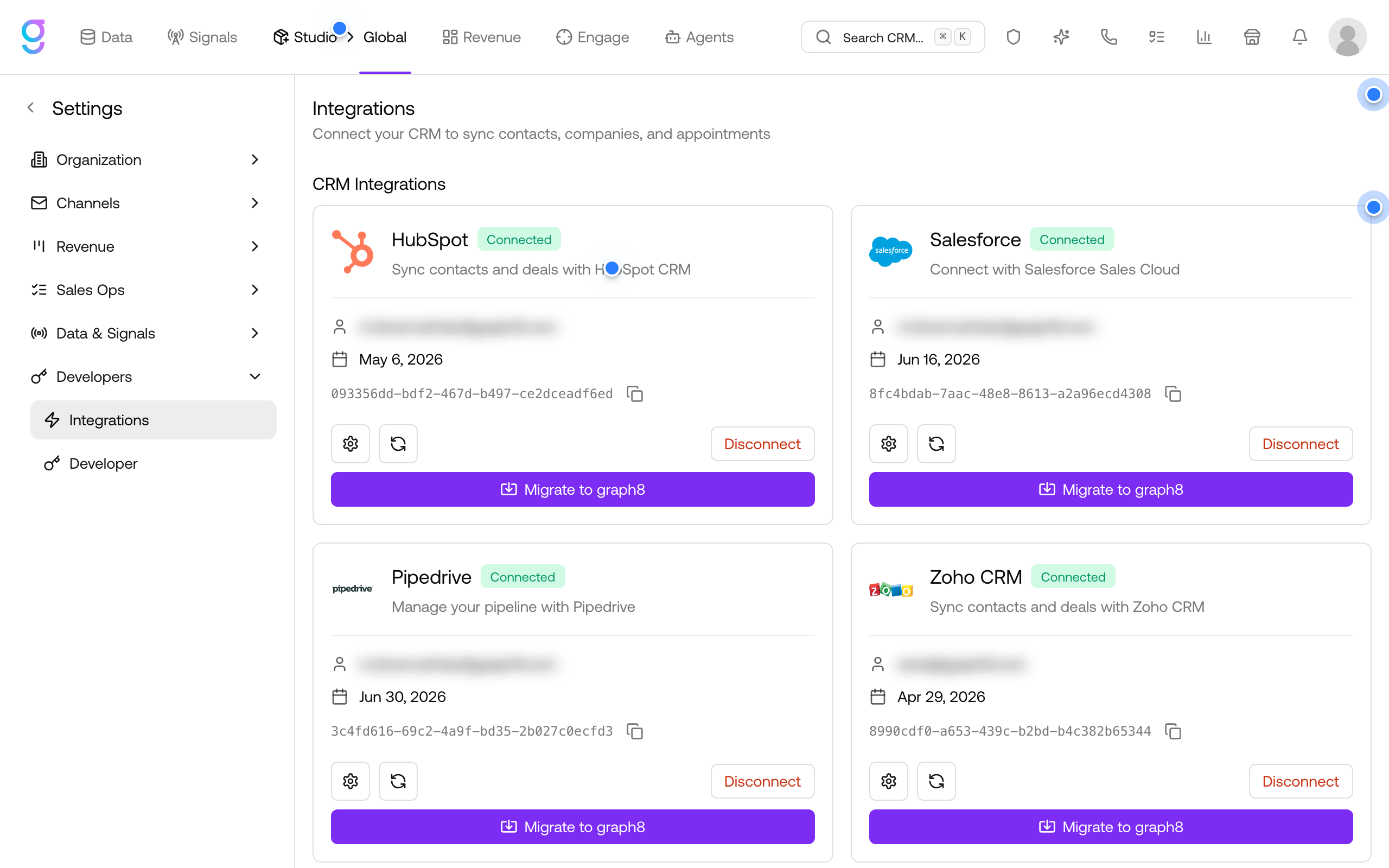
How Pipedrive Works with graph8: Labels as Lists
Pipedrive does not have static contact lists. Its “filters” are dynamic saved searches, so records cannot be manually added to or removed from them. The static way to group records in Pipedrive is labels: the color-coded tags you see on people, such as Customer, Hot lead, Warm lead, and Cold lead.
graph8 uses labels as the list mechanism for Pipedrive:
- Every Pipedrive label appears in graph8 as a list you can sync. Want to pull everyone tagged Hot lead? Select that tag and graph8 pulls exactly those records.
- When you push a graph8 list to Pipedrive, the pushed records are tagged with a Pipedrive label of your choice (an existing one or a new one graph8 creates for you).
- Labels are per record type: persons, organizations, deals, and leads each have their own set of labels, and graph8 handles each separately.
Connecting Pipedrive
- Click your profile icon in the top-right corner and select Settings
- In the Settings sidebar, expand Developers and click Integrations
- Find Pipedrive under CRM Integrations and click Connect
- A Pipedrive authorization window opens. Choose the Pipedrive company to connect, review the access request, and click Continue to the App
- The Pipedrive card now shows Connected, along with the connected account email and connection date
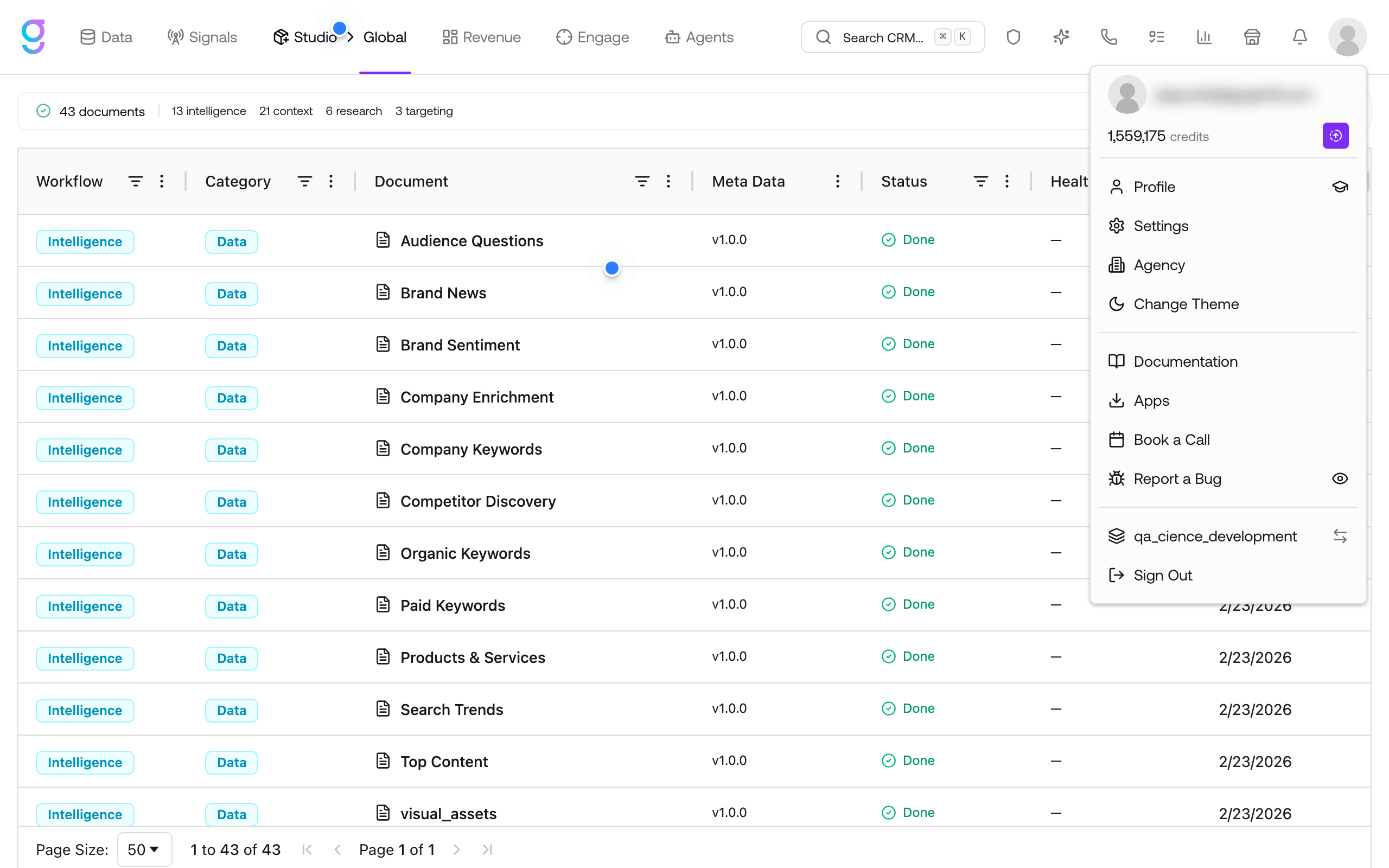
Once connected, the card gives you:
| Control | What it does |
|---|---|
| Settings (gear icon) | Opens the Pipedrive Settings dialog with the Push, Pull, Fields, and Appointments tabs |
| Refresh | Re-checks the connection |
| Disconnect | Stops all syncing. Data already synced into graph8 remains |
| Migrate to graph8 | Launches the one-time migration wizard to bring your full Pipedrive database into graph8 |
Pulling from Pipedrive
Open the settings dialog (gear icon) and select the Pull tab. You can pull all four record types (persons, organizations, deals, and leads) and control what they become in graph8 with the Create new records as selector.
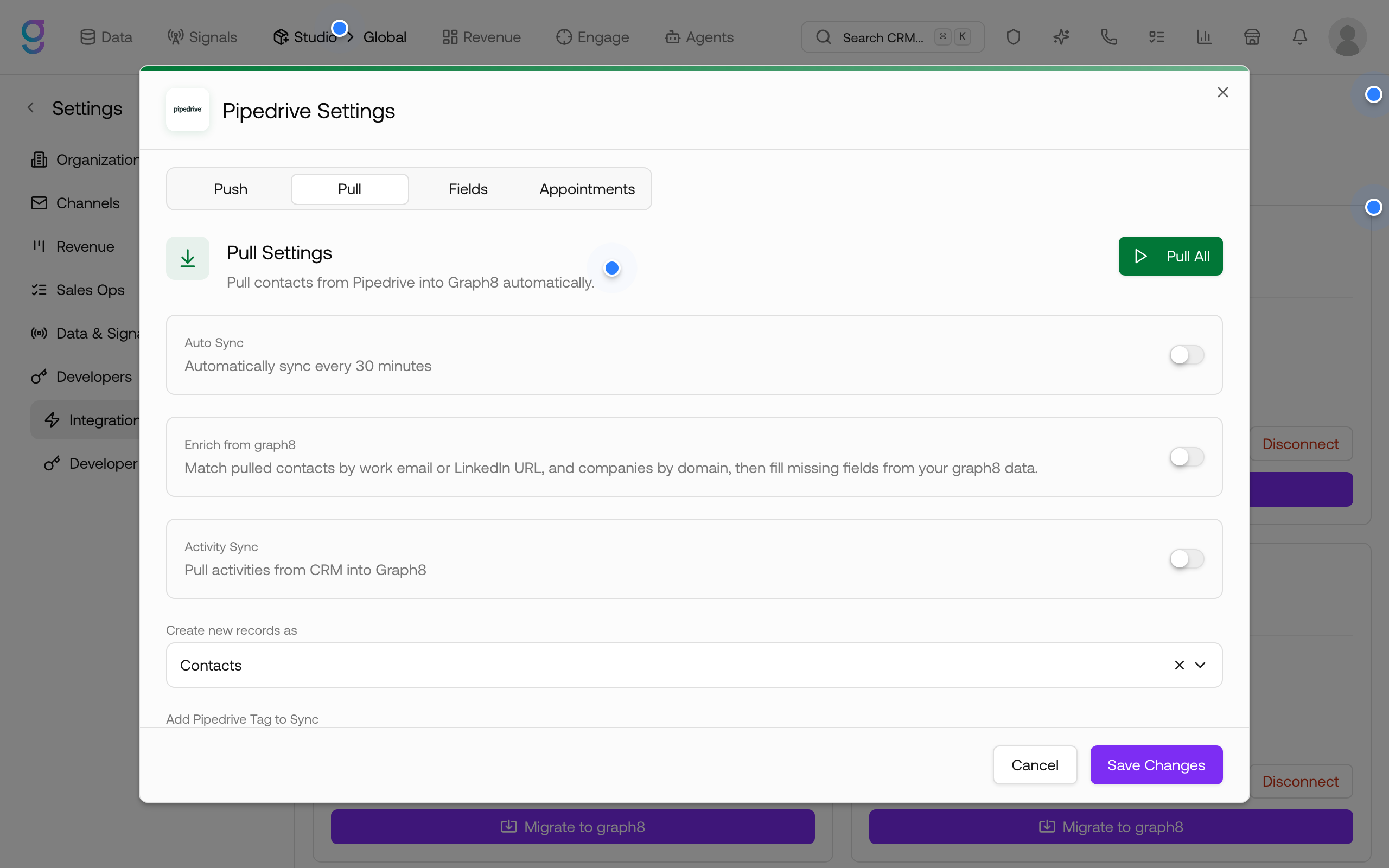
Pull options
| Setting | What it does |
|---|---|
| Auto Sync | Automatically re-syncs every 30 minutes |
| Enrich from graph8 | Matches pulled contacts by work email or LinkedIn URL (companies by domain) and fills missing fields from your graph8 data |
| Activity Sync | Pulls activities (notes, calls, emails, meetings, tasks) from Pipedrive into graph8 |
| Create new records as | Choose whether pulled records are created as Contacts, Leads, Companies, or Deals in graph8 |
Pull a specific label (tag)
- Under Add Pipedrive Tag to Sync, open the tag dropdown. It lists your Pipedrive labels, for example Customer, Hot lead, Warm lead, Cold lead
- Select the tag you want to pull. Only records carrying this tag are pulled
- Choose the graph8 list the records should land in
- Click Add
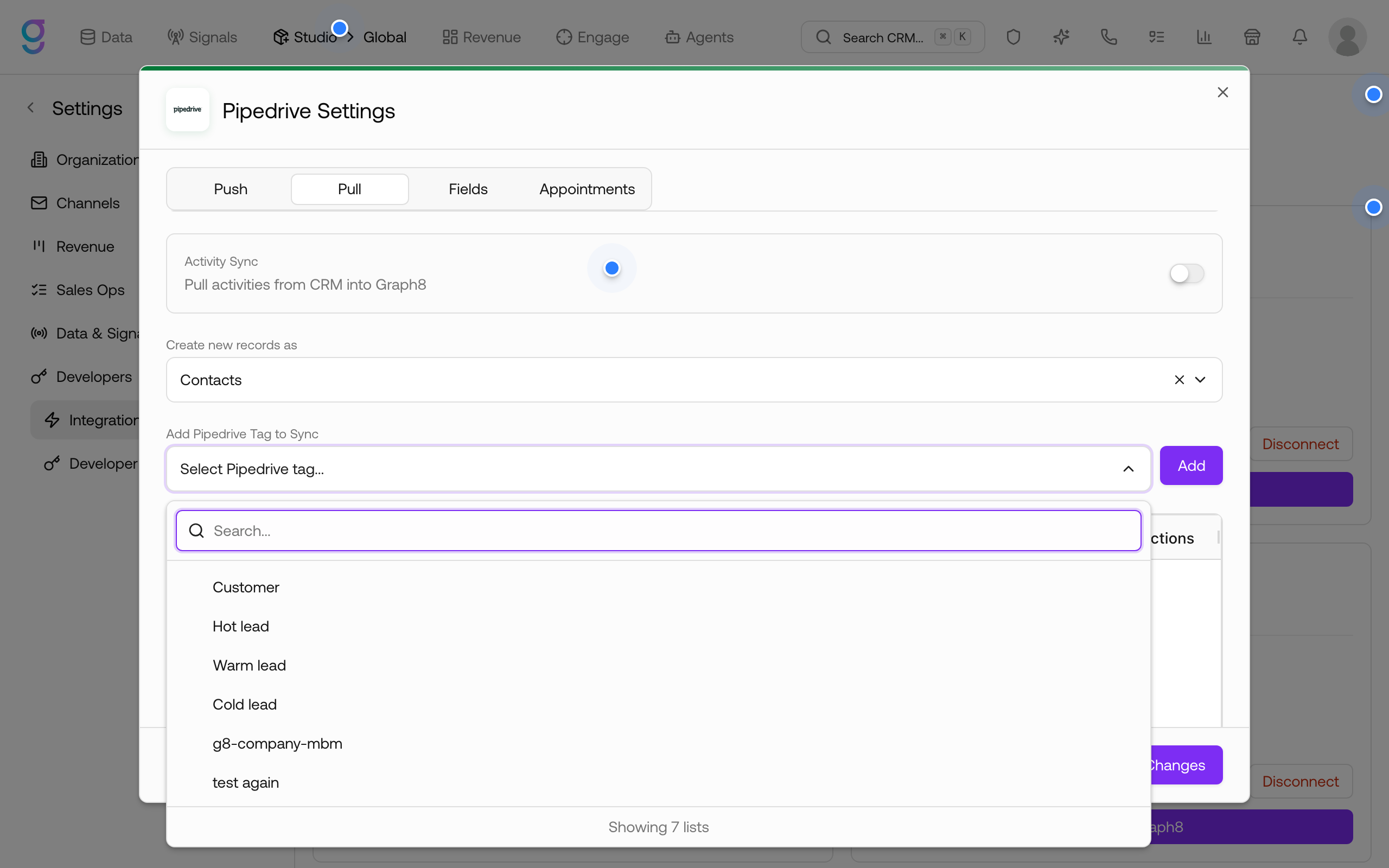
Each tag-to-list pair appears in the sync table with its CRM List ID, Pipedrive Tag, graph8 List, Entity Type, Sync Started time, Status, and Actions. With Auto Sync on, every pair re-syncs on the 30-minute schedule.
Pull everything
Click Pull All to pull all records of the selected type (for example, all persons), then choose the graph8 destination list.
Pushing to Pipedrive
Select the Push tab in the same dialog. Like pull, push works for all four record types: use the record type selector to push Contacts, Leads, Companies, or Deals.
- Choose the record type to push
- Click Add graph8 List to Sync and choose the graph8 list to push
- The Select Pipedrive Tag dialog opens with three options:
- Existing Tags: pick one of your Pipedrive labels. Every pushed record gets this label, so you can find them instantly with a label filter
- Create New: type a name and graph8 creates the label in Pipedrive for you
- None: click Continue Without Tag to push the records without applying any label
- Click Add, or use Push All to push all records of the selected type
Push settings mirror the pull side: Auto Sync re-pushes every 30 minutes, and Activity Sync pushes activities created in graph8 to Pipedrive.
Rich data fields are created automatically
Pipedrive’s built-in schema is minimal (persons have little more than name, email, and phone). When graph8 pushes enrichment data, it automatically creates the matching custom fields in Pipedrive, including Job title, LinkedIn, Department, Seniority, Mobile, and for organizations Website, Industry, Annual revenue, Employee count, and more. If a field with the same name already exists in your Pipedrive account, graph8 reuses it instead of creating a duplicate.
Field Mapping
Select the Fields tab to control which Pipedrive fields map to which graph8 fields. Mappings are managed per record type using the Contact Mappings, Lead Mappings, Company Mappings, and Deal Mappings tabs.
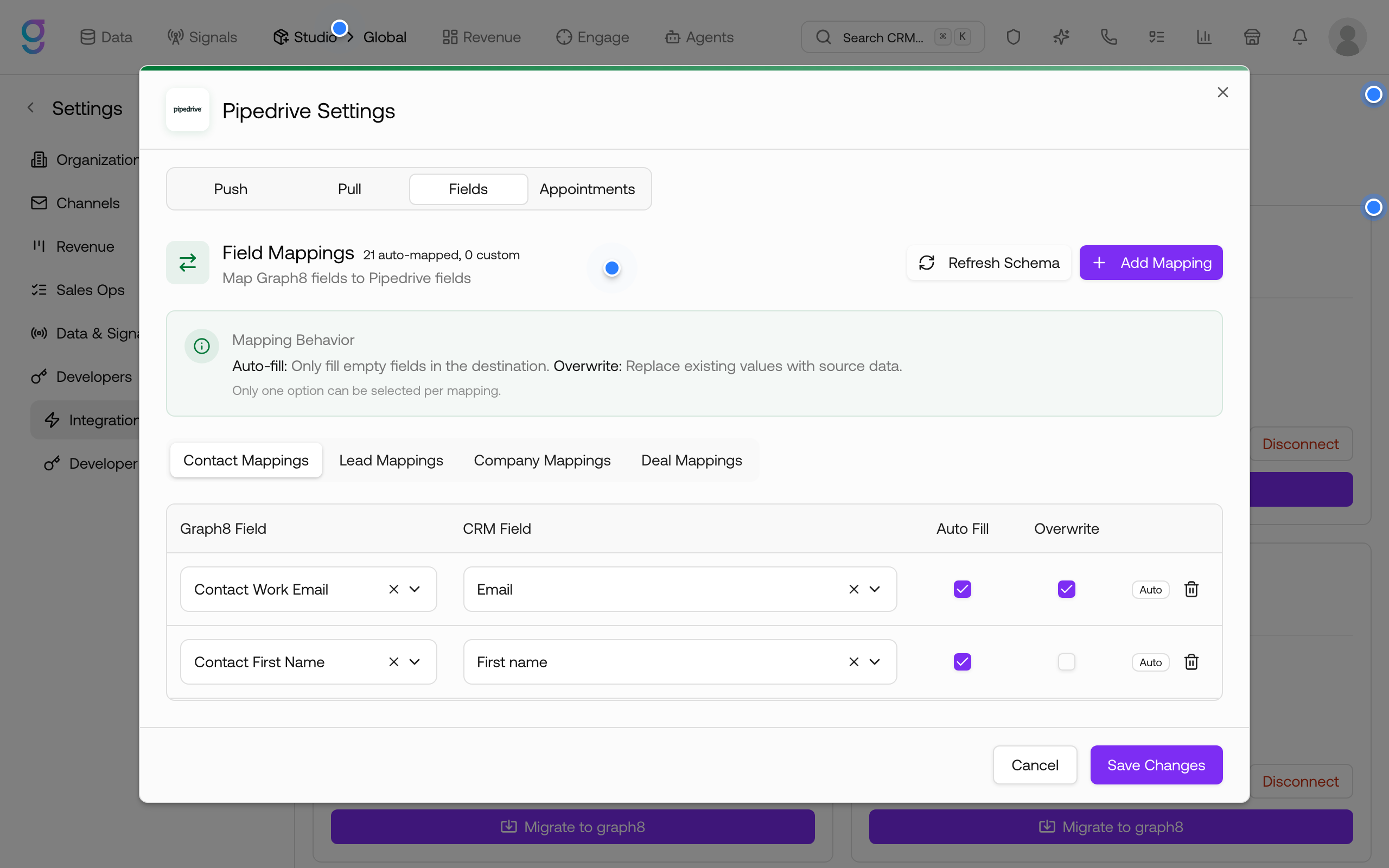
Automatic mapping
graph8 pre-maps the standard fields for you:
| Record type | Auto-mapped fields |
|---|---|
| Contacts (Persons) | Email, first name, last name, phone, plus the linked organization’s name and address details |
| Companies (Organizations) | Name, address, city, state, country, postal code |
| Deals | Title, value, stage, expected close date, owner, currency, pipeline |
| Leads | Title, source, value, expected close date, plus the linked person’s identity fields |
Pipedrive stores rich data (LinkedIn URL, industry, revenue, employee count, and similar) as per-account custom fields. graph8 detects these by their field name and suggests the mapping automatically, for example a custom field named “LinkedIn” maps to the graph8 LinkedIn URL field. Every suggested row is marked as auto and can be removed before saving.
Custom mapping
Use Add Mapping to map any Pipedrive field (including custom fields) to any graph8 field, and Refresh Schema to re-read the field list from Pipedrive after you add fields there.
Each mapping has two behavior options (one per mapping):
| Behavior | What it does |
|---|---|
| Auto Fill | Only fills empty fields in the destination. Values you already have are never touched |
| Overwrite | Replaces existing values with the source data |
Appointments
The Appointments tab controls meeting sync. Meetings booked through graph8 are created in Pipedrive as activities of type “meeting” on the matched person, and cancellations or reschedules update the same activity.
What Syncs
| graph8 | Pipedrive | Pull | Push |
|---|---|---|---|
| Contacts | Persons | Yes | Yes |
| Companies | Organizations | Yes | Yes |
| Deals | Deals | Yes | Yes |
| Leads | Leads | Yes | Yes |
| Activities | Activities (calls, emails, meetings, notes, tasks) | Yes | Yes |
| Lists | Labels | Yes | Yes |
Frequently Asked Questions
Why don’t I see my Pipedrive filters in graph8?
Filters are dynamic saved searches, and Pipedrive does not allow records to be added to them directly. graph8 syncs with labels instead, which behave like proper lists. To sync a group of records, give them a label in Pipedrive and select that tag in graph8.
How often does data sync?
With Auto Sync enabled, every configured tag/list pair syncs every 30 minutes. You can also trigger a sync manually at any time from the sync table, or use Pull All / Push All.
What happens when I disconnect?
Syncing stops immediately. Data already pulled into graph8 remains, and labels graph8 created in Pipedrive stay on your records.